Styling Cells
The styling of cells is done using the html class attribute on an element.
Using a style works similarly to the normal html. To apply a style “class”, you simply
set class="style-name" on an element.
You can compose a specific style from a number of more generic styles
by simply including all the styles separated by a space i.e. class="xl-centered xl-underlined".
Simlar to html, in the event 2 styles set the same style attribute, the last one to set a particular
style attribute “wins”.
Make use of default styles
The library exposes some basic builtin styles for convenience. To see the full set, for the current version of your library you can run:
>>> from htmxl.compose.style import default_styles
>>> print([style['name'] for style in default_styles])
['xl-centered', 'xl-underlined']
And to use those styles, the classes would
<tr class="xl-centered">
  <td>c1</td>
  <td>c2</td>
</tr>
Combining styles together
<tr class="xl-centered xl-underlined">
  <td>c1</td>
  <td>c2</td>
</tr>
Define custom styles
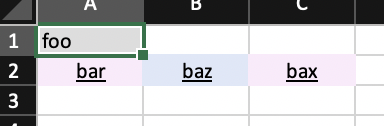
from htmxl.compose import Workbook

template = """
    <body>
        <div>
            <span class="title">foo</span>
        </div>
        <div>
            {% for column_name in column_names %}
                <span class="xl-centered xl-underlined {{ loop.cycle('odd', 'even')}}">{{ column_name }}</span>
            {% endfor %}
        </div>
    </body>
"""

styles = [
    {"name": "title", "pattern_fill": {"patternType": "solid", "fgColor": "DDDDDD"}},
    {"name": "odd", "pattern_fill": {"patternType": "solid", "fgColor": "FBEAFB"}},
    {"name": "even", "pattern_fill": {"patternType": "solid", "fgColor": "DFE7F8"}},
]


workbook = Workbook(styles=styles)
workbook.add_sheet_from_template(template=template, data=dict(column_names=["bar", "baz", "bax"]))
workbook.compose("filename.xslx")